
Documentation / Administration
Users
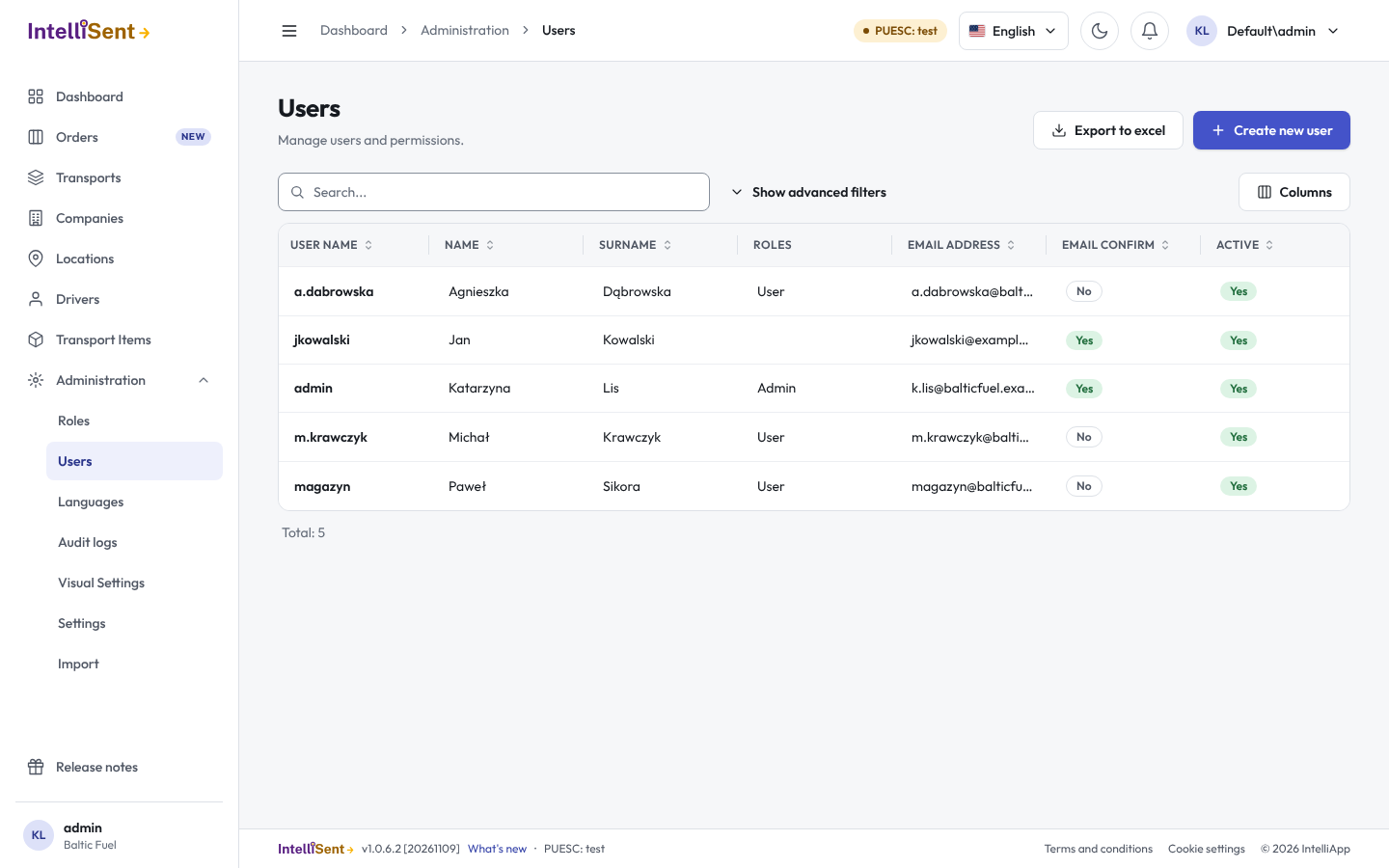
Administration > Users lists the people who sign in to IntelliSent in your company, and sets what each of them may do. It needs the permission Users; creating, editing and deleting users, changing permissions and signing in as another user each have their own permission under it.
Add a user
- Click Create new user.
- Fill in the First Name, Surname, Email address, Phone number and User name.
- Set the password: tick Set random password. to let IntelliSent make one, or type it twice. Should change password on next login. makes the user choose their own at the first sign-in, and Send activation email. e-mails them a link to confirm their address.
- Tick the user's Roles. A role marked as default is ticked for new users already; see Roles.
- When your company does not use one PUESC login for everyone, enter the user's own PUESC user name and password and Verify them; see Settings.
- Leave Active ticked, and choose whether Two factor authentication enabled and Lockout enabled apply to this user.
- Click Save.
Find a user
Search by name, user name or e-mail. Show advanced filters filters by permission or role. Each row shows whether the e-mail is confirmed, the last login time and when the user was created. Export to excel saves the list.
Actions on a user
- Edit: change the user's data, roles and password.
- Permissions: give this user permissions beyond their roles, or take some away. Reset special permissions drops these and leaves only what the roles give.
- Unlock: lets a user in again after too many failed sign-ins locked their account.
- Login as this user: see IntelliSent as the user sees it, for example to help them. A bar at the top takes you Back to my account. The audit log records what you do on their behalf.
- Delete: removes the user.
If you change your own permissions, reload the page (F5) to see the change.
Drivers' app logins
A driver who signs in to the IntelliSent SENT app is a user too, with the role SentDriver. Create these logins on the driver's card in Drivers rather than here.