
Documentation / Getting started
Getting started
IntelliSent prepares the SENT notifications of your transports of monitored goods, sends them to PUESC and brings back PUESC's answers: the SENT number, the keys and every later change. This page shows how to get in and where everything is on the screen.
Create an account
On the sign-in page click Create account and fill in the company's details. Enter your company's NIP and click Fill in from GUS: the name and code are filled in from the GUS register, and after your first sign-in your company is added to Companies with its address. Then choose the administrator's user name, e-mail and password. Your company gets 30 days of full access for free.
Sign in
Open the IntelliSent app and sign in with your User name or email and Password. Each company in IntelliSent is a separate tenant: when the sign-in page shows a Current tenant that is not yours, click Change tenant and type your company's tenancy name.
- Forgot password? sends a link to reset your password to your e-mail address.
- When your company has two-factor sign-in turned on, IntelliSent asks for a code sent by e-mail or SMS, or shown in your authenticator app, after the password. Remember this browser skips the code next time in the same browser, when the administrator allows it.
- The first time, and whenever the terms of service change, IntelliSent asks you to accept them; see Terms and conditions.
A new company starts in the welcome wizard, which walks through the first setup.
The screen
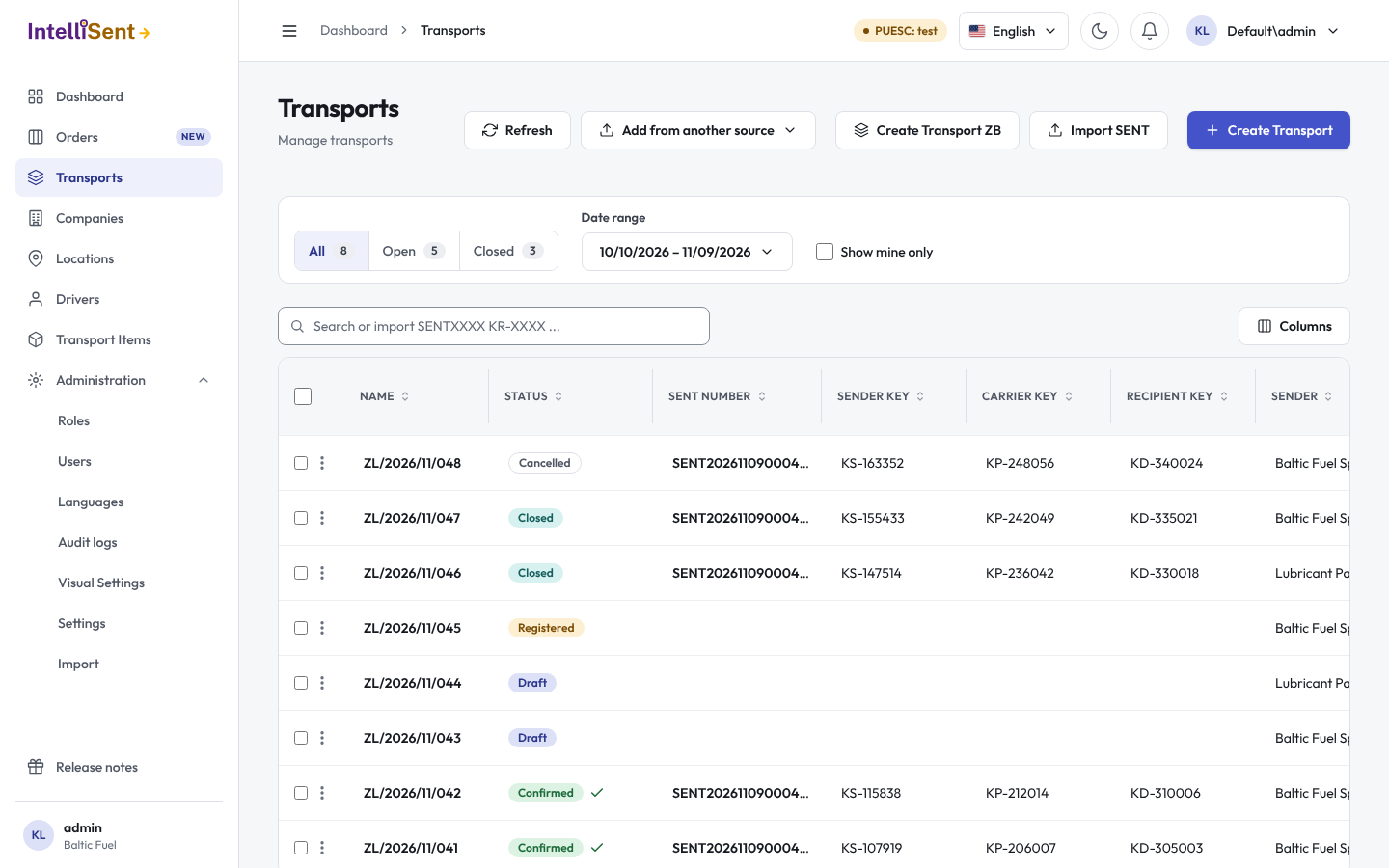
- The side menu on the left holds every screen you may open: the dashboard, the order board, Transports, Companies, Locations, Drivers, Transport Items and, for administrators, Administration. What you see depends on your permissions (see Roles). The arrow button at its top hides the menu or brings it back. When your company also uses IntelliFleet, IntelliSent's screens sit under the IntelliSent heading.
- The top bar shows where you are: click an earlier part of the path to go back to it.
- The PUESC environment badge tells you where your SENT notifications go: Live or Test mode. Test mode is shown in amber; notifications sent in it never reach the real SENT register.
- The language menu switches the app's language, and the button beside it switches between light and dark mode.
- The bell shows notifications: PUESC's answers, delivery confirmations and other messages. The number on it is how many you have not read yet. See all notifications opens the full list, where Set all as read clears them.
- Your picture opens the account menu: My settings (see My settings), Visual Settings, Terms and conditions, Take the tour and Logout.
Lists open a record's details in a panel beside the list, so you can keep your place in the list while you look at a record.
Banners above the screen
- Emergency procedure is active: PUESC announced its emergency procedure. Read Emergency procedure before you send.
- PUESC newsletter: a new message from PUESC about SENT. Read more opens it.
- The trial bar shows how many days of the trial are left, with the plans and a contact form.
The tour
The first time you sign in, IntelliSent offers a one-minute tour of the screen. Later asks again next time, Don't show again stops asking. You can take the tour at any time from the account menu, Take the tour.
What's new
The bottom of the menu has Release notes. After an update, a What's new window lists what was added, improved and fixed; View full release history opens every earlier version.
Session timeout
When your administrator turns on the session timeout, IntelliSent signs you out after a time without activity. A countdown warns you first; moving the mouse or pressing a key keeps you signed in.