
Documentation / Order board
Order board
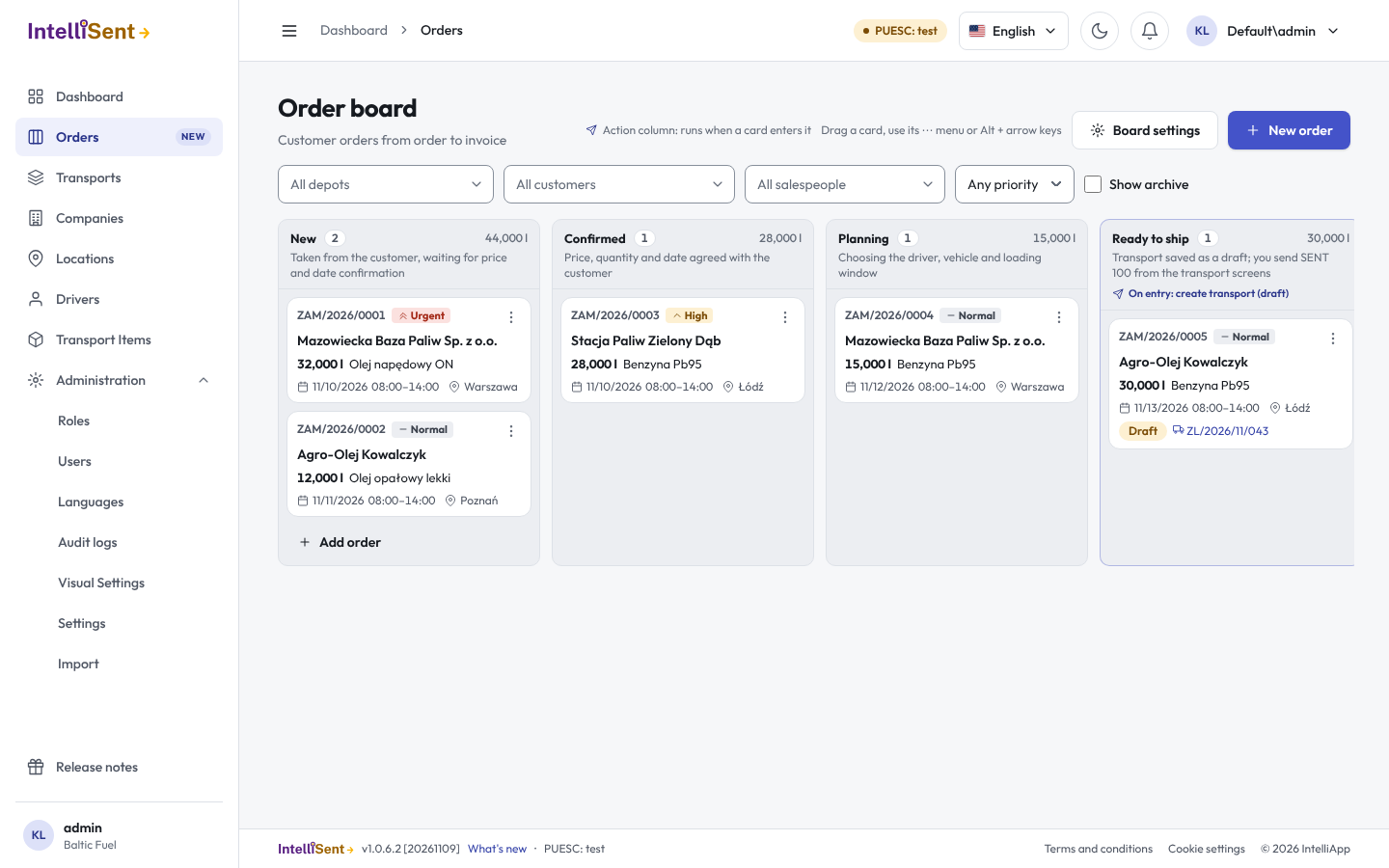
The order board follows your customers' orders from the moment an order is taken to the invoice. Each order is a card; the columns are the steps it goes through. When a card enters certain columns, IntelliSent does the work for you: it creates the order's transport, closes it or hands the order over to invoicing.
Who can use the board
The board is part of your plan when your edition includes it. In Roles, under Orders:
- Orders lets a user see the board and work with orders;
- Order board configuration lets them change the columns; see Board settings;
- Send SENT from the order board lets them send SENT messages when a card moves. Without it, a move saves the transport as a draft and a dispatcher sends it.
The columns
A new board has seven columns, left to right:
| Column | What it means | What happens when a card enters it |
|---|---|---|
| New | Taken from the customer, waiting for price and date confirmation | Nothing |
| Confirmed | Price, quantity and date agreed with the customer | Nothing |
| Planning | Choosing the driver, vehicle and loading window | Nothing |
| Ready to ship | Transport created, SENT 100 submitted | Creates the transport and SENT 100 |
| In transit | Goods dispatched, carriage monitored in SENT | Nothing |
| Delivered | Recipient accepted the goods, transport closed | Closes the transport |
| To invoice | For accounting: delivered quantity and documents | Hands the order over to invoicing |
An action column is marked on the board. Your administrator can rename, add, remove and reorder columns and change their actions. A card cannot skip a column whose action has not run for it, such as Ready to ship: the transport must exist before it can be closed.
Each column shows its number of orders and the litres in it.
Cards
A card shows the customer, the goods and quantity, the delivery day and time window, the priority and the salesperson. Once the order has a transport, it shows the transport's number, its SENT status and whether it is a draft or an unloading point of a cumulative transport. A card past its delivery date is marked overdue.
Cards in a column are sorted by priority, then by delivery date. Moving a card up or down puts the column in Manual order; Default order puts it back.
Move a card
Drag the card to another column, use Move to… in the card's ⋯ menu, or select the card and press Alt with an arrow key. When the target column has an action, a window asks for what the action needs first; see Orders and Orders. The card moves only when the action succeeds.
Filter the board
Narrow the board by Depot (place of dispatch), Customer, Salesperson and Priority. Clear filters shows everything again; the board says how many orders are shown.
Invoiced and cancelled orders leave the board. Show archive brings them back, marked as archived.
Working together
The board updates itself: when someone else adds or moves an order, you see the change without reloading. Refresh reads the board again.