
Documentation / Transports and SENT
Transports
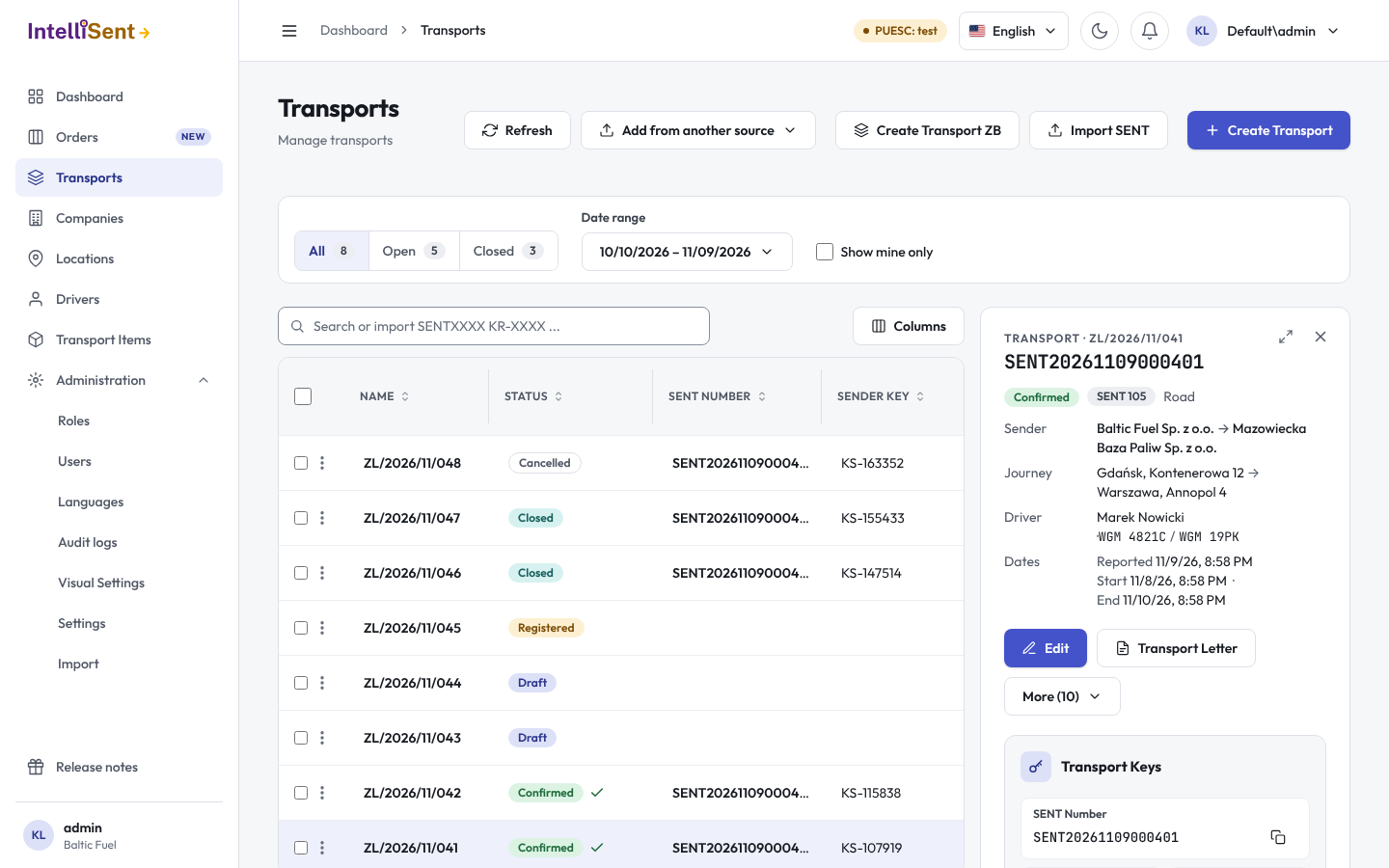
Transports lists every transport of your company: the drafts, the ones on the road and the closed ones. From here you create transports, send their SENT messages, look at PUESC's answers and print the documents.
Who can see and change transports
In Roles, the permission Transport lets a user see the list; its child permissions let them create, edit and delete transports. Sending SENT messages, closing and cancelling need the edit permission.
Find a transport
- All, Open and Closed narrow the list by the transport's state.
- Status narrows it to one or more statuses (see SENT in a nutshell).
- Date range picks a period: today, yesterday, the last 7 or 30 days, this or last month, last year, or your own range.
- Show mine only keeps the transports you created.
- The search box finds a transport by its name, SENT number, keys, companies and the like. When you paste SENT numbers with their keys into it, IntelliSent offers to import them; see Import transports.
Click a column's header to sort by it. Rows per page sets how many transports a page shows; Ctrl + → and Ctrl + ← go to the next and previous page. Refresh (or Alt + R) reads the list again.
The list shows the transport's name, status, SENT number, the sender's, carrier's and recipient's keys, the sender and the recipient, the planned start and the end, when it was created, and the goods and their quantity.
A transport's details
Click a row to open its details beside the list:
- the parties, the route, the goods and the dates (reported, start, end);
- Transport Keys: the SENT number and the keys, each with a copy button, and the buttons to send them; see Sending;
- Transport Carriage Details: the goods lines and, on a cumulative transport, its unloading points;
- the message history: every SENT message sent and every answer from PUESC, each with its status, its XML and, where PUESC sent one, its report or error;
- the driver: send the driver the keys and the delivery confirmation link; see Delivery and closing. Once the transport was sent to the driver's app, the last send shows under the driver: when it was sent, and whether the driver has opened it (or that no phone was reached).
The sections load from the server when you expand them. Edit opens the transport form, and More holds every other action.
Actions on a transport
More groups the actions a transport allows at the moment:
- SENT messages: send the SENT message the transport is ready for (SENT 100, 105, 102, 137, 200, 202, 205 or 120), and Confirm goods receipt and close (SENT 103/203).
- Transport: Delete, and Copy, which saves a new draft with the same data.
- PUESC and documents: Get data from PUESC (SENT 400: brings the transport up to date with PUESC), Get data from PUESC by document number (when PUESC's answer is missing), Retry communication with PUESC, Add to transport letter, Confirm the delivery of goods (opens the driver's confirmation form).
- Driver's app: Send to the driver's app sends the transport to the phones of its driver in the IntelliSent SENT app, who gets the notification "New order to depart". It needs a driver, and the transport must not be closed, cancelled or invalid. When the driver has no phone with the app signed in yet, the transport waits in the driver's list.
- Cancellation and emergency: Send transport cancellation (SENT 104), or SENT 122 for a cumulative transport, and Confirmed in emergency procedure; see Emergency procedure.
Every action that sends something to PUESC asks first.
Several transports at once
Tick the transports in the list, or Select all on the page. A bar takes the place of the filters with what you can do with all of them:
- Transport Letter and Stock Issue Confirmation: one document for all of them; see Documents.
- Close Completed: closes those of the ticked transports that are waiting to be closed, such as the ones whose driver confirmed the delivery.
- Confirm goods receipt and close (SENT 103/203): closes the ticked transports on behalf of the recipient, with the closing date and delivered quantity of each; see Delivery and closing.
- Send batch order to driver: e-mails one link listing all the transports to their driver, who confirms them one by one within 7 days. All the transports must have the same driver.
- View batch form: opens that driver's form in a new window.
- Send to the drivers' app: sends each ticked transport to its own driver's app. The question says how many are left out because they have no driver or are closed or cancelled, and the answer how many were sent, how many found no phone with the app and how many failed.
- Batch Report: the SENT reports of all of them.
- Export to excel: the ticked transports, with the columns the list shows, as a CSV file that Excel opens.
- Delete selected.
Create a transport
Create Transport (or Alt + N) opens the transport form for a single carriage. Create Transport ZB opens it for a cumulative carriage: one vehicle with several unloading points. Add from another source imports transports instead; see Import transports.