
Documentation / Transports and SENT
The transport form
The transport form holds everything a SENT notification needs: who sends, who receives and who carries the goods, which goods and how much, where they are loaded and unloaded, and when. You open it with Create Transport on the transport list, with Edit on a transport, or from the order board.
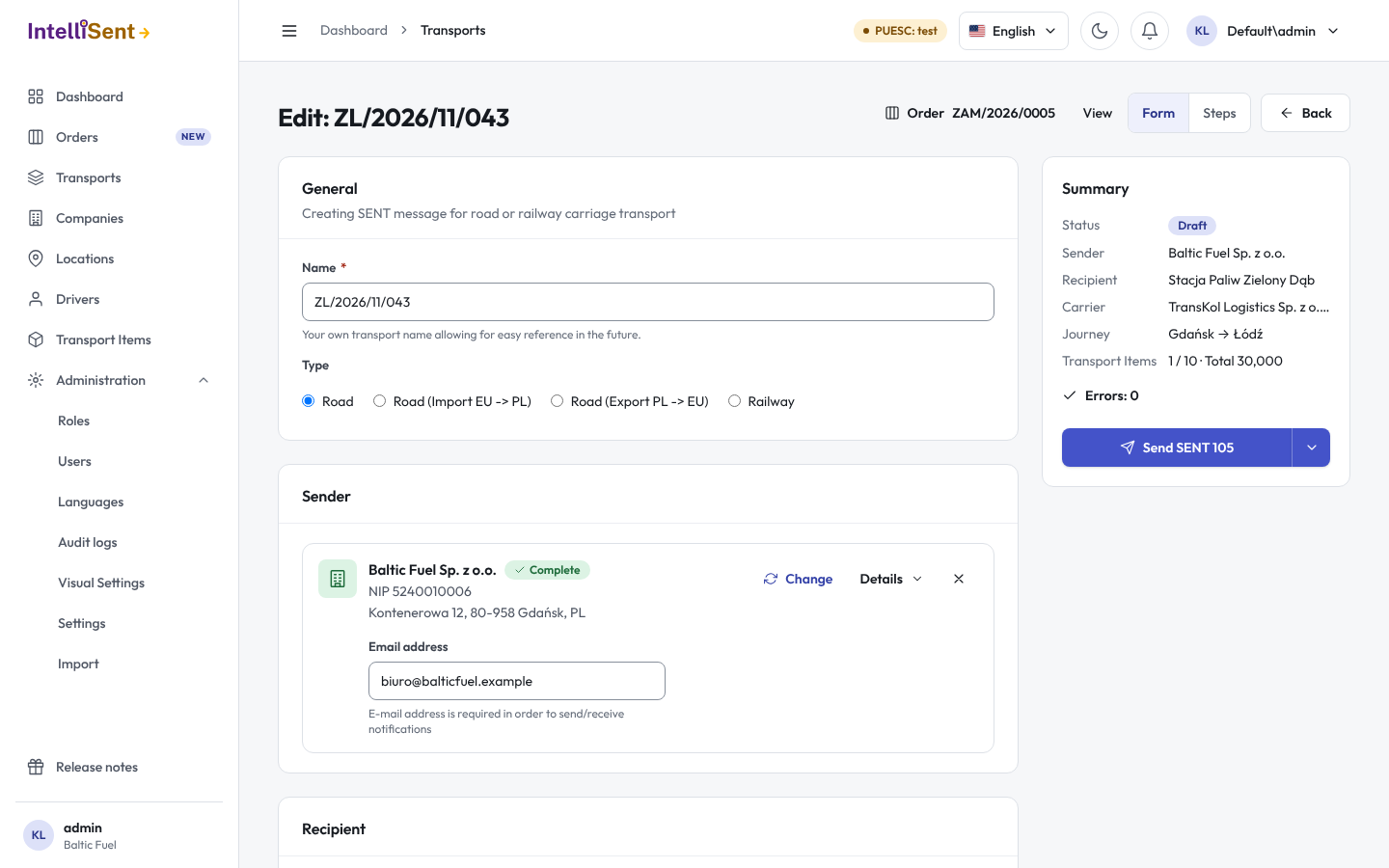
Form or steps
The switch at the top shows the form in one of two ways:
- Form: every section on one page, with a summary beside it that lists what is complete and what still has errors.
- Steps: one section at a time, with Next and Back, and the steps listed with their state (completed, or has errors).
Both hold the same fields; pick the one you like. Your browser remembers the choice.
The sections
- General: the Type of carriage, a name of your own to find the transport later, and Simplified. The types are Road, Road (Import EU -> PL), Road (Export PL -> EU) and Railway. When your company uses order numbers, the order number is here too.
- Sender: the company dispatching the goods. Type its name, trader number or code to pick it from Companies, or add a new company on the spot: start with its NIP and GUS fills in the rest.
- Recipient: the company receiving the goods.
- Transport Items: the goods lines. Pick a transport item to fill in the name, CN code, unit of measure and VAT rate, then enter the amount. A line is saved with its own Save before the transport is. Heating oil (CN code 0004) has extra fields for the recipient's address ID, mobile device ID and contract.
- Journey: the loading place and the unloading place, picked from Locations or typed as an address, and for an import or export the border crossing. Use sender's address and Use recipient's address copy a company's address into the place.
- Carrier: the carrying company, the driver and the vehicle, the type and number of the transport document, and the start and end dates. Pick a driver from Drivers to fill in the default truck, trailer, road permit and GPS tracker numbers; you can change them for this transport only.
- Additional information: who filled in the form, comments, the planned start date (at most 10 days after the registration) and, when your company uses them, additional e-mail addresses that get the recipient's and the carrier's keys, the forwarder's e-mail, and the choice to send to PUESC with your company's details on behalf of another party.
Your administrator decides some of what the form shows in the PUESC settings, such as the order number and the order-first layout, which puts the order number, the planned start date and the forwarder at the top; see Settings.
Simplified hides the carrier's section, the border crossings and the destination, for a quick SENT 100 or SENT 137 where the carrier completes its own data later with SENT 102.
Help while you type
- Use last value under a field fills in what you entered there on your previous transport.
- The star beside the loading place saves it as the favourite of the chosen sender, so it is filled in the next time you pick that sender.
- A field with a problem is marked, and the section's card says what to fix. The summary lists every error.
Drafts and unsaved changes
Save keeps the transport as a draft without sending anything. Reset reloads the form and drops the changes you have not saved.
If you leave the form with unsaved changes, IntelliSent asks first. The changes are kept in your browser: when you open the same form again, you can Bring back or Discard them.
Internal transports
Internal saves a transport that is kept in IntelliSent only and is never registered in PUESC, for example a carriage that does not need SENT. It shows on the list with the status Internal.
Cumulative transports
Create Transport ZB opens the form for a cumulative carriage: one vehicle carries one kind of goods to several recipients. Instead of one recipient you enter the transport item, the Total amount or volume, and a line per unloading point with its recipient, unloading place in Poland and amount. The form shows the Remaining amount or volume. Once a line has been sent, the transport item and the total can no longer be changed.
A cumulative transport is registered with SENT 120. Lines added later are sent with SENT 121 or SENT 106; see Sending.
After the transport is sent
Once PUESC has accepted a transport, its data can be changed only through an update message. The form then shows an Editing mode: Carrier (the carrier's data, sent with SENT 102) or Sender (the sender's data, sent with SENT 101). The fields the chosen update cannot change are locked, and a note says which update would change them.