
Documentation / Transports and SENT
Documents and reports
IntelliSent prints the papers that travel with the goods and keeps PUESC's own reports of each notification.
Transport letter and stock issue confirmation
The Transport Letter lists the transports of a carriage with their SENT numbers, keys, goods and quantities, for the driver to carry. The Stock Issue Confirmation (WZ) is the warehouse's goods issue document.
To make them:
- for one transport: More, then Add to transport letter;
- for several: tick them on the list and click Transport Letter or Stock Issue Confirmation in the bar.
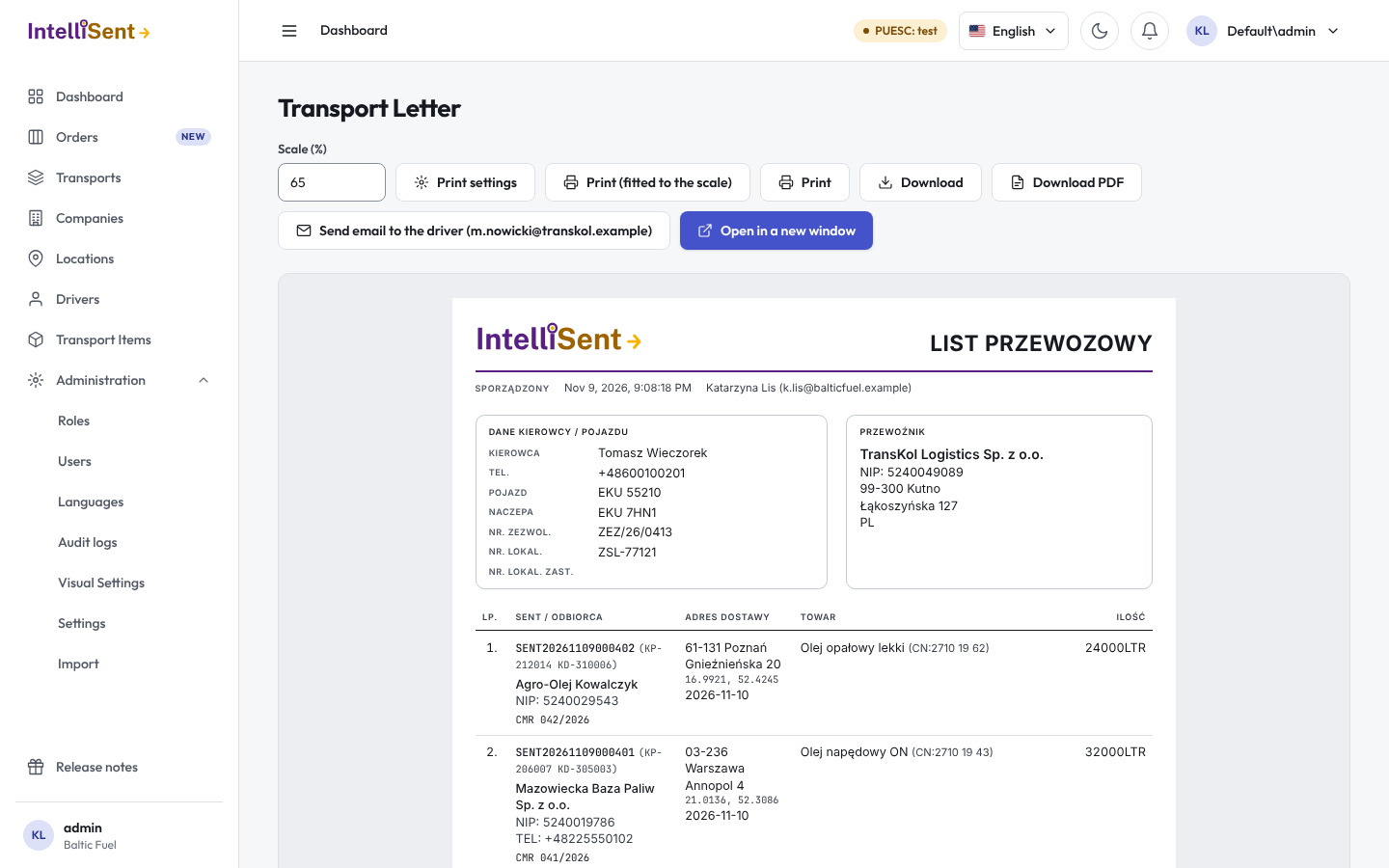
The document opens in a preview with its print settings:
- Company in the SENT column: the recipient or the sender;
- Columns and Sections to show;
- Edit fields on the document: change a value for this printout only, for example a remark. SENT numbers, keys, goods, CN codes, quantities and the total cannot be edited, because they must match the declaration in PUESC. Restore the transport's data undoes your edits;
- for the WZ: Copies per A4 page (original and copy, or one), whether to show the SENT number with the goods, and Fill in quantities from the transport. The current number, warehouse number, order and destination are left blank for handwriting.
These settings never change the transport or its SENT declaration.
Then Print, Download PDF, Open in a new window, or Send email to the driver, which e-mails the transport letter to the transport's driver.
The SENT report
PUESC sends a report of each notification. In a transport's message history, Report opens it, and Generate Raport asks for it when it is not there yet. For several transports, tick them and choose Batch Report in the bar's Actions.
The XML of a message
Every message in a transport's history can be downloaded as XML. When PUESC's systems do not work, the downloaded XML helps you register the message by attaching it to an e-mail to sent@mf.gov.pl, as PUESC's emergency procedure describes; see Emergency procedure.
Export the list
Tick transports on the list and click Export to excel for a file with the columns the list shows.