
Documentation / Administration
Settings
Administration > Settings holds your company's settings. It needs the permission Settings. The settings are in tabs; Save all stores every tab at once.
General
The Timezone dates and times are shown in for everyone in your company, when your plan lets you choose it. Each user can pick their own in My settings.
Appearance
- Application Logo: your logo in the menu instead of IntelliSent's. Upload takes a JPG, PNG or GIF file of at most 30 KB, ideally 139 × 35 pixels; Clear brings IntelliSent's back.
- Custom CSS: a style sheet of at most 1 MB that changes the app's look for your company. Download gets the current one, Clear removes it.
These are saved with their own buttons, not with Save all.
User management
- Form Based Registration: Allow users to register to the system. lets people create their own user in your company from the sign-in page. Then choose whether New registered users are active by default. (otherwise an administrator activates each one) and whether registration asks for a captcha.
- Email confirmation required for login.: users must confirm their e-mail address before they can sign in.
- Session Timeout Control: signs users out after a time without activity. Set the timeout in seconds and how long the countdown warning shows, and whether a lock screen appears instead.
Security
- Password complexity: Use default settings, or your own rules: the required length and whether a password needs digits, lower and upper case letters and other characters.
- User Lock Out: locks a user's account after a number of failed sign-ins, for a number of seconds. An administrator can unlock it earlier in Users.
- Two Factor Login: asks for a code after the password. Choose the ways the code may come: by e-mail, by SMS, or from Google Authenticator. Allow to remember browser lets users skip the code in a browser they trust.
Invoice
Your company's Legal Name and Address for IntelliSent's invoices.
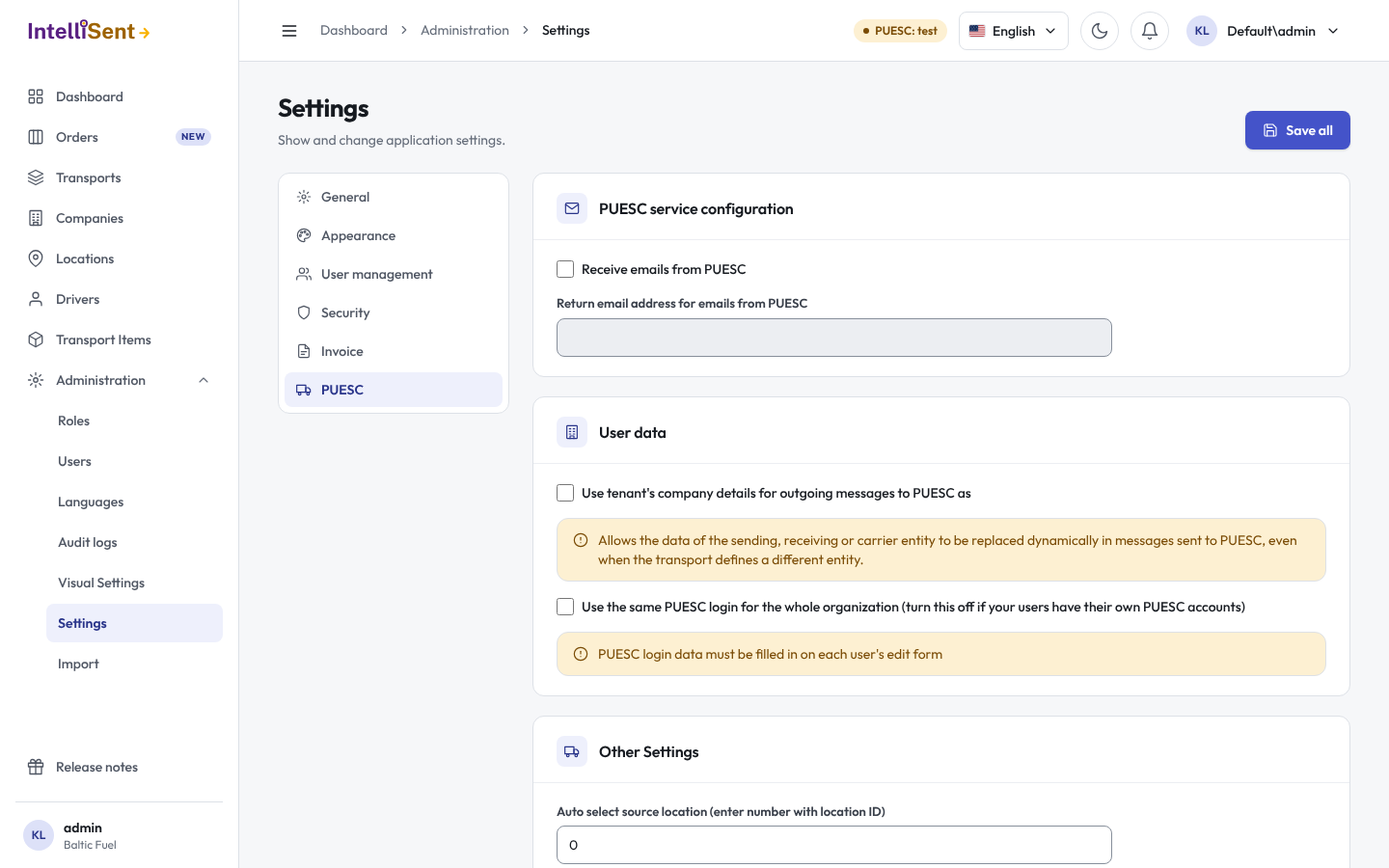
PUESC
How your company talks to PUESC:
- User data: the PUESC (SEAP) login IntelliSent sends with. Turn on Use the same PUESC login for the whole organization and enter its user name and password, then Verify. Turn it off when your users have their own PUESC accounts: each then enters theirs in My settings, or an administrator in Users.
- Receive emails from PUESC and the Return email address for emails from PUESC.
- Use tenant's company details for outgoing messages to PUESC as: replaces the sender, recipient or carrier in the messages sent to PUESC with your company's data, even when the transport names another company.
- ID SISC: your company's identifier in SISC, such as PL514024113700000, used with the option above.
- Other Settings change the transport form and the messages around it:
- Auto select source location: the loading place every new transport starts with (its location number);
- Order-first transport form: the order number, planned start date and forwarder at the top of the form, without the import type;
- Show Order No input field on transport forms;
- Allow capturing additional emails for carrier and recipient key notifications, and Allow capturing forwarder's additional email;
- Allow automatic SMS to Driver after SENT112, SENT115 confirmation: the driver gets the keys by SMS as soon as PUESC confirms the transport (charged extra; the driver's phone number must be filled in), optionally with the breakdown of a cumulative SENT 120;
- Defer recipient email notification until driver confirms delivery: the recipients' e-mails go out only once the driver confirms the delivery; see Delivery and closing.