
Documentation / Companies, locations, drivers and goods
Drivers
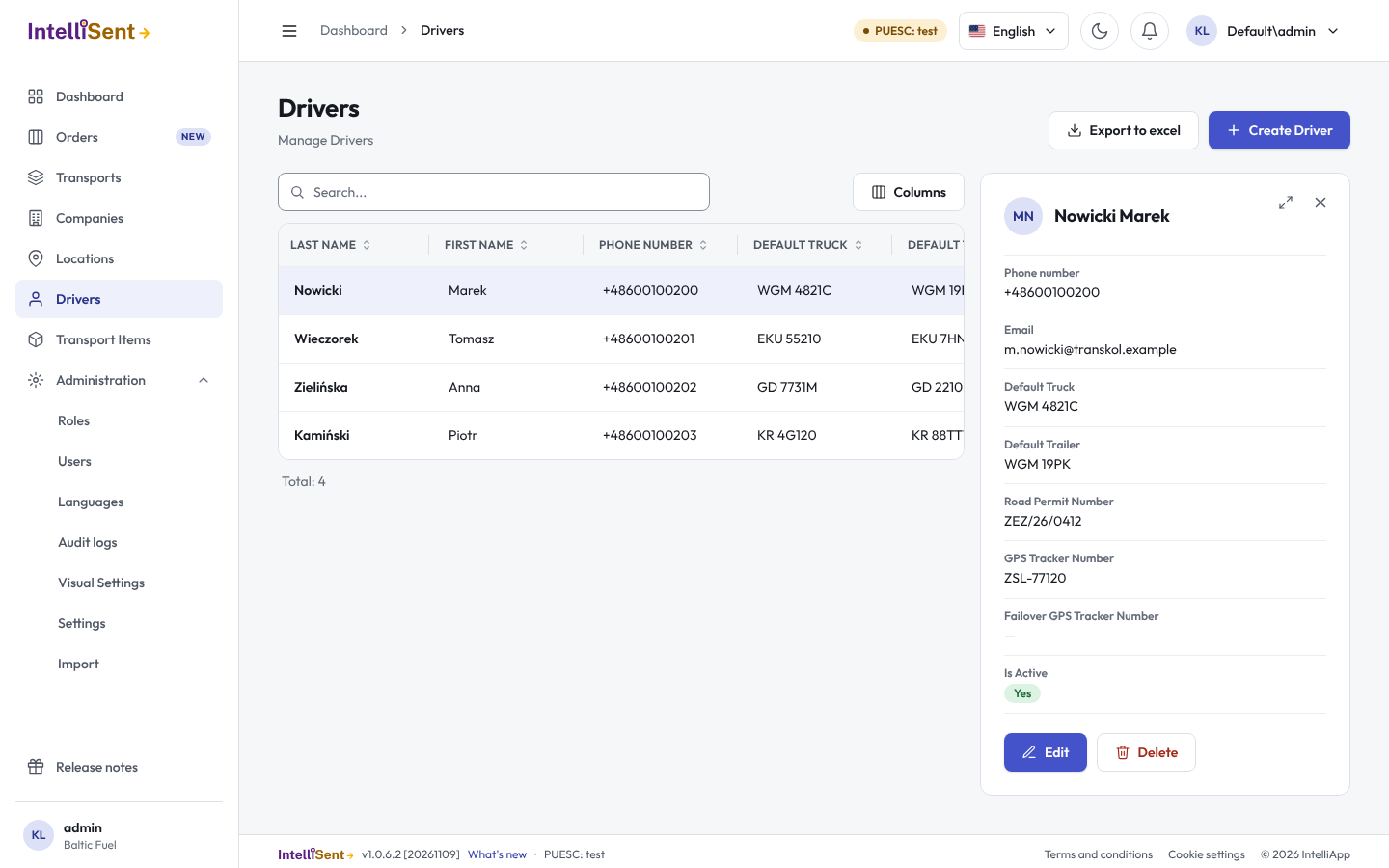
Drivers holds the drivers who carry your goods, with their usual vehicles. The transport form fills in the driver and the vehicle from here, which SENT 105, SENT 205 and the cumulative notifications need.
Who can see and change drivers
In Roles, the permission Driver lets a user see the list; its child permissions let them create, edit and delete drivers.
Add a driver
- Click Create Driver.
- Enter the First Name and Last Name, the Phone number and the Email. The phone number gets the keys by SMS and the delivery confirmation link; the e-mail gets the transport letter and the link.
- Enter the usual vehicle: Default Truck and Default Trailer (registration numbers), the Road Permit Number, the GPS Tracker Number and the Failover GPS Tracker Number.
- Click Save.
On a transport, picking the driver fills in these values; you can change them there for that transport only. You can also add a driver from the transport form, with New driver.
The IntelliSent SENT app login
The box IntelliSent SENT app on a driver lets the driver sign in to the IntelliSent SENT app and see their transports:
- Create login: makes a user for the driver with a User name, an optional Email address (needed for a password reset from the app) and a Password. Leave the password empty to let the driver set one at the first sign-in.
- Link an existing user: gives an existing user of your company the driver's access, for example an employee who sometimes drives.
- Remove login: the user no longer signs in to the app as this driver. The user account stays.
The login gets the role SentDriver, whose only permission is SENT mobile app (driver). IntelliSent creates the role the first time a driver gets a login.
Change or deactivate a driver
Open the driver, change what you need and save. Untick Is Active for a driver who no longer works for you; their transports keep their data.