
Documentation / IntelliSent SENT app
IntelliSent SENT app
IntelliSent SENT is the phone app of IntelliSent, for Android and iPhone. One app has two sides:
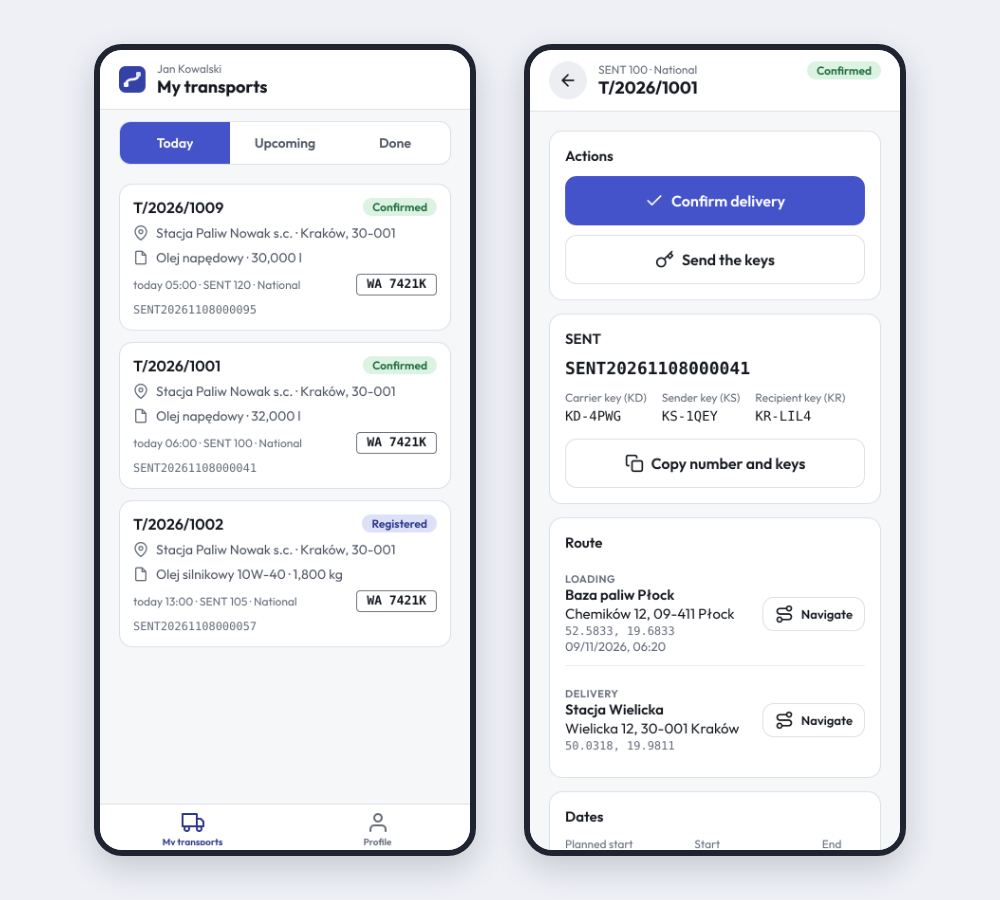
- the driver's: the transports the office assigned to you, with their SENT number and keys, the route, the goods and the documents, and the confirmation of the delivery;
- the office's: every transport of the company, creating and sending them, the order board and dictation; see The SENT app in the office.
Which side you see depends on your login: a driver's login shows My transports, an office login Transports (and Orders), and a login with both shows both tabs.
Install and sign in
- Install IntelliSent SENT from the App Store or Google Play, or from the link your office sends you.
- Enter your Company code (your company's tenancy name in IntelliSent), your User name or e-mail and your Password. A driver gets the login from the office, which creates it on the driver's card in Drivers.
- When the office left the password empty, the app asks you to Set a new password now.
After the first sign-in the app offers to sign you in with Face ID, your fingerprint or the phone's biometrics next time; you can turn it off in Profile. Forgot password? e-mails you a link to set a new password; it needs the e-mail address of your login.
A login that needs a two-factor code cannot sign in to the app yet: sign in on the web.
My transports
The driver's list has three tabs:
- Today: what you carry today;
- Upcoming: what is planned for the coming days;
- Done: what you have delivered.
When the office sends you a transport, your phone gets a notification, New order to depart, and the transport is marked New until you open it. Tap the notification to open the transport. The office sees when you have opened it.
Pull the list down to refresh it.
A transport
A transport shows:
- the status and the SENT number, with the SENT keys (carrier, sender and recipient) and Copy number and keys;
- the Route: the loading and delivery places, with Navigate to open them in your maps app;
- the Dates, the Parties (with Call for a phone number), the Goods and the Vehicle and driver;
- the PUESC messages of the transport;
- the Documents: the Transport letter and the WZ note, which you Print on a printer the phone reaches or share as a PDF.
Confirm the delivery
When you have unloaded, tap Confirm delivery and enter the Delivered quantity; All delivered fills in the planned quantity. On a cumulative transport, enter the quantity for the unloading points you are confirming now and leave the others empty; confirm the rest as you unload them.
The office sees your confirmation at once and closes the transport with SENT 103. Nothing goes to PUESC from your confirmation.
Keys to the customer
After the delivery, Send the keys to the customer e-mails the SENT number and keys to the recipient, for example when their copy did not arrive. The customer's address is filled in; change it if the keys should go elsewhere.
Profile
- your company, login, name and e-mail, and whether you are a driver and have office access;
- Language: the phone's language, English, Polish or German;
- Appearance: same as the phone, light or dark;
- Sign in with Face ID or fingerprint, and Change password;
- Location: Share your location lets the app read where the phone is while it is open. In this version nothing is sent anywhere;
- Sign out, and the app's version.
Updates
When a new version is available, the app says so; Update opens the store. When your version is no longer supported, the app asks you to update before you continue. Small updates install themselves: Restart applies one at once.