
Documentation / Getting started
Welcome wizard
The welcome wizard opens after the first sign-in of a new company. It walks you through the data IntelliSent needs before you send your first SENT notification. Each step opens the right form directly on the wizard's screen: fill it in, save, and move on.
You don't have to finish it in one go. Until you have entered your PUESC credentials, the start page brings you back to the wizard, and the dashboard shows the setup's progress with Continue setup. Use the list of steps on the left to jump between steps.
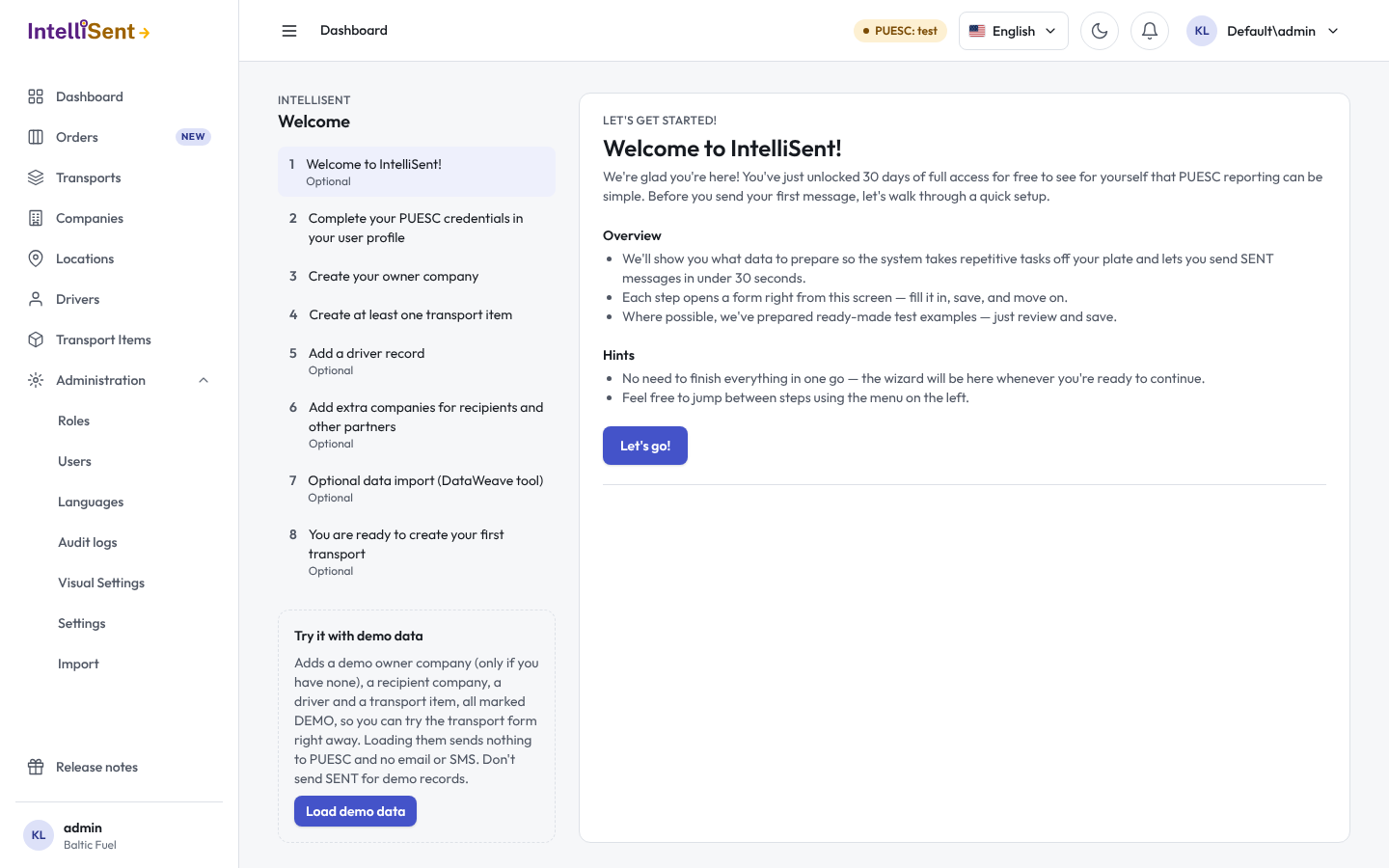
The steps
- PUESC credentials. Your PUESC (SEAP) user name and password, so that IntelliSent can send notifications in your name and receive the SENT numbers and keys. Verify checks them with PUESC before you save. Use test credentials fills in a shared test account of the PUESC test environment, to try IntelliSent without your own account. When your company uses one PUESC login for everyone, the administrator enters it in the settings instead; see Settings.
- Your company. The owner company is the company your IntelliSent account belongs to. Enter its NIP and use the search icon to fill in the data from GUS, check it, tick This is my company and save. Add an e-mail address and turn on e-mail notifications to receive the SENT number and keys by e-mail. See Companies.
- A transport item. The goods you carry, such as diesel fuel with CN code 2710, so the transport form can fill in the name, CN code, unit of measure, VAT rate and weight. See Transport items.
- A driver. The driver's name, default truck and trailer, road permit and GPS tracker number. Drivers are needed for SENT 105, SENT 205 and the cumulative notifications; for SENT 100 alone you can skip this step and come back later. See Drivers.
- More companies (optional). Your recipients, carriers and other partners, so you don't type them on every transport.
- Data import (optional). When you already have data in another system or in PUESC, import it; see Data import.
A step shows Completed once its data exists. Create test record fills a step's form with a ready-made example you only check and save. When everything required is done, Create first transport opens the transport form.
Try it with demo data
Load demo data adds a demo owner company (only when you have none), a recipient company, a driver and a transport item, all marked DEMO, so you can try the transport form at once. Loading them sends nothing to PUESC and no e-mail or SMS. Remove demo data deletes the records marked DEMO again; the records you added yourself stay.