
Documentation / Companies, locations, drivers and goods
Companies
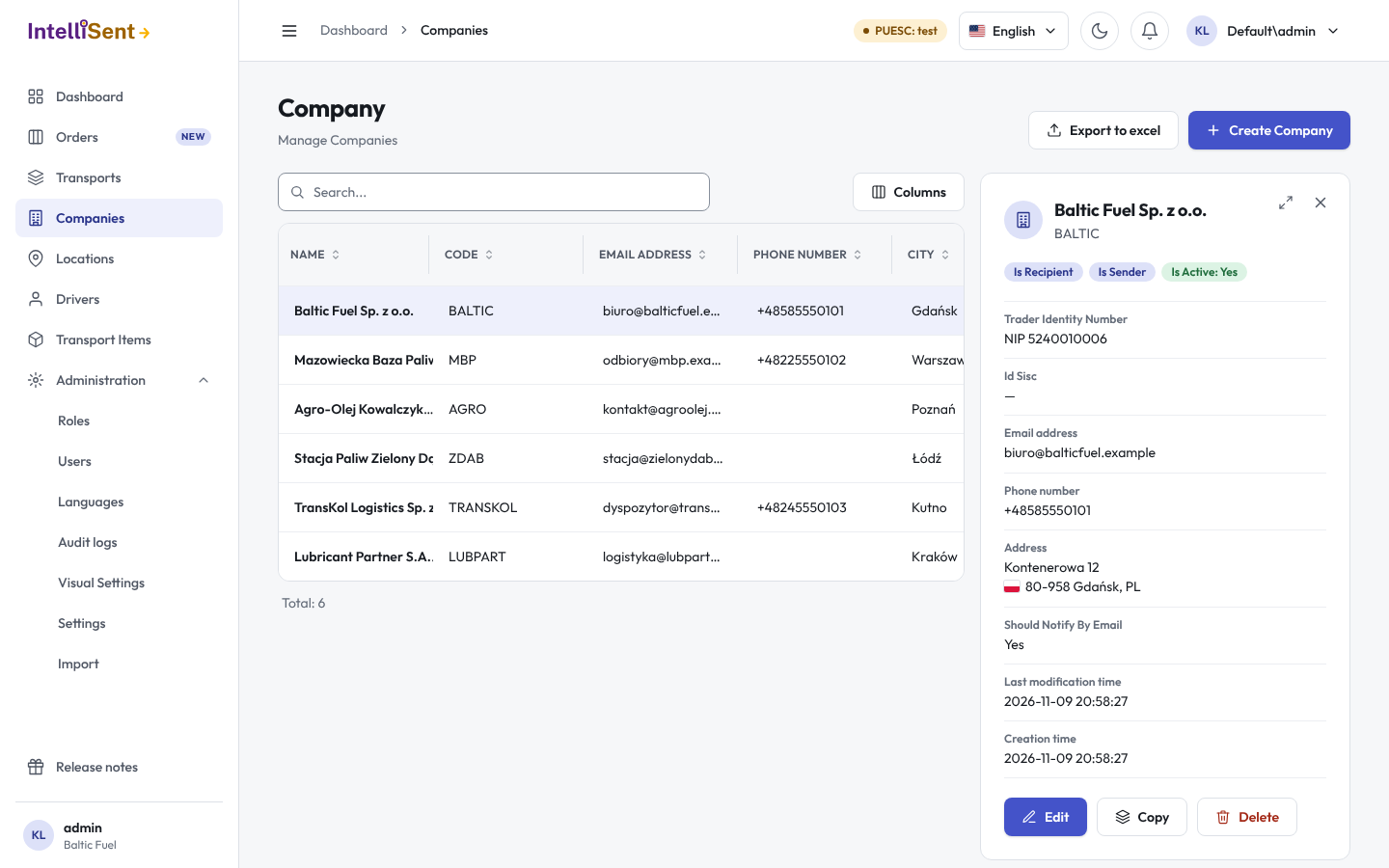
Companies holds the companies you work with: your own company, your recipients, carriers and other partners. The transport form picks the sender, the recipient and the carrier from here, and IntelliSent sends them the SENT number and keys at the addresses kept here.
Who can see and change companies
In Roles, the permission Company lets a user see the list; its child permissions let them create, edit and delete companies.
Add a company
- Click Create Company.
- Choose the Trader Identity Type and enter the Trader Identity Number: a NIP for a Polish company, an EU VAT number, or, for a contractor without a VAT number, OTHER with any identification number. A person can be identified by PESEL, identity card, residence card, driving licence or passport.
- For a NIP, Autofill from NIP/REGON fills in the name and address from the GUS register, and Find ID Sisc by NIP fills in the company's ID SISC.
- Check the Code: a short internal code that makes the company quicker to find, such as COMPANY001. IntelliSent suggests one.
- Enter the Email address and Phone number. The e-mail address receives the SENT number and keys; it is required to send and receive notifications.
- Under Properties, tick what the company is for you: Is Sender, Is Recipient, Is Carrier. At least one is needed before you can use it on a transport, and they decide where the transport form offers it.
- Click Save.
Your own company
Tick This is my company on the company your IntelliSent account belongs to. Its code becomes OWNER and it is linked to your account, so the transport form can use it as the sender or the carrier, and its address is the one on your documents. The welcome wizard creates it with you.
More on a company
- Comments show as an on-screen reminder when the company is picked on a transport.
- Should Notify By Email sends the company the SENT number and keys of its transports by e-mail.
- Is Active: untick it for a company you no longer use but want to keep.
- Locations: the company's loading and unloading places. Add Location adds one; see Locations.
Find, copy and export
Search by name, code or trader number. A row's details open beside the list; Edit, Copy (a new company with the same data) and Delete are in its menu. Export to excel saves the list.
To add many companies at once, import them; see Data import.